How to schedule Reminder Texts in the BlueCloudUSA Texting App

Scheduling Reminders - BlueCloudUSA Business Texting Desktop

You can schedule reminders to notify users of upcoming appointments, events, etc.

Scheduling reminders from the Inbox tab

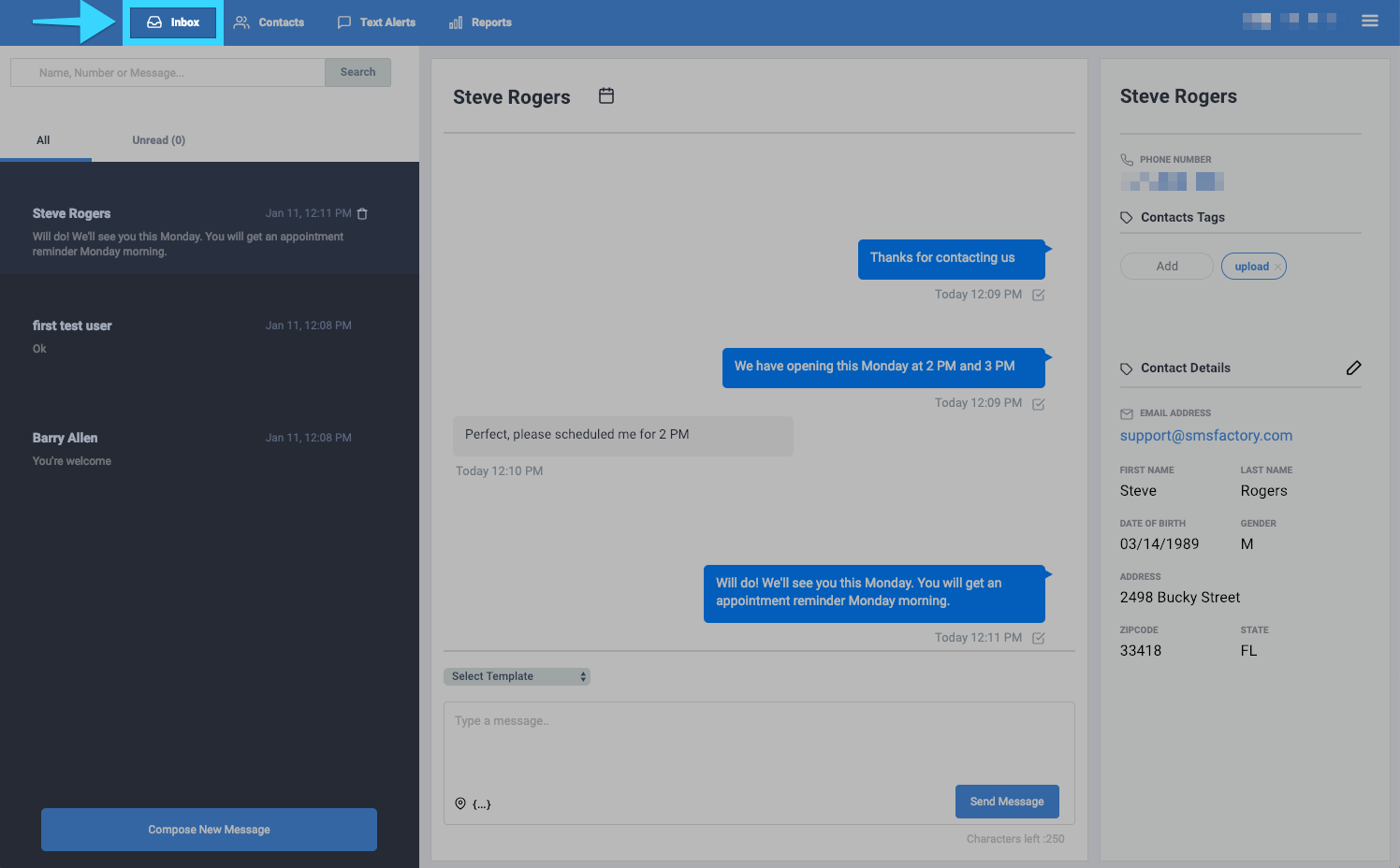
  1. Go to the Inbox tab 

    Image_2019-01-11_at_2.54.14_PM.png

  2. Click on your desired conversation with a user
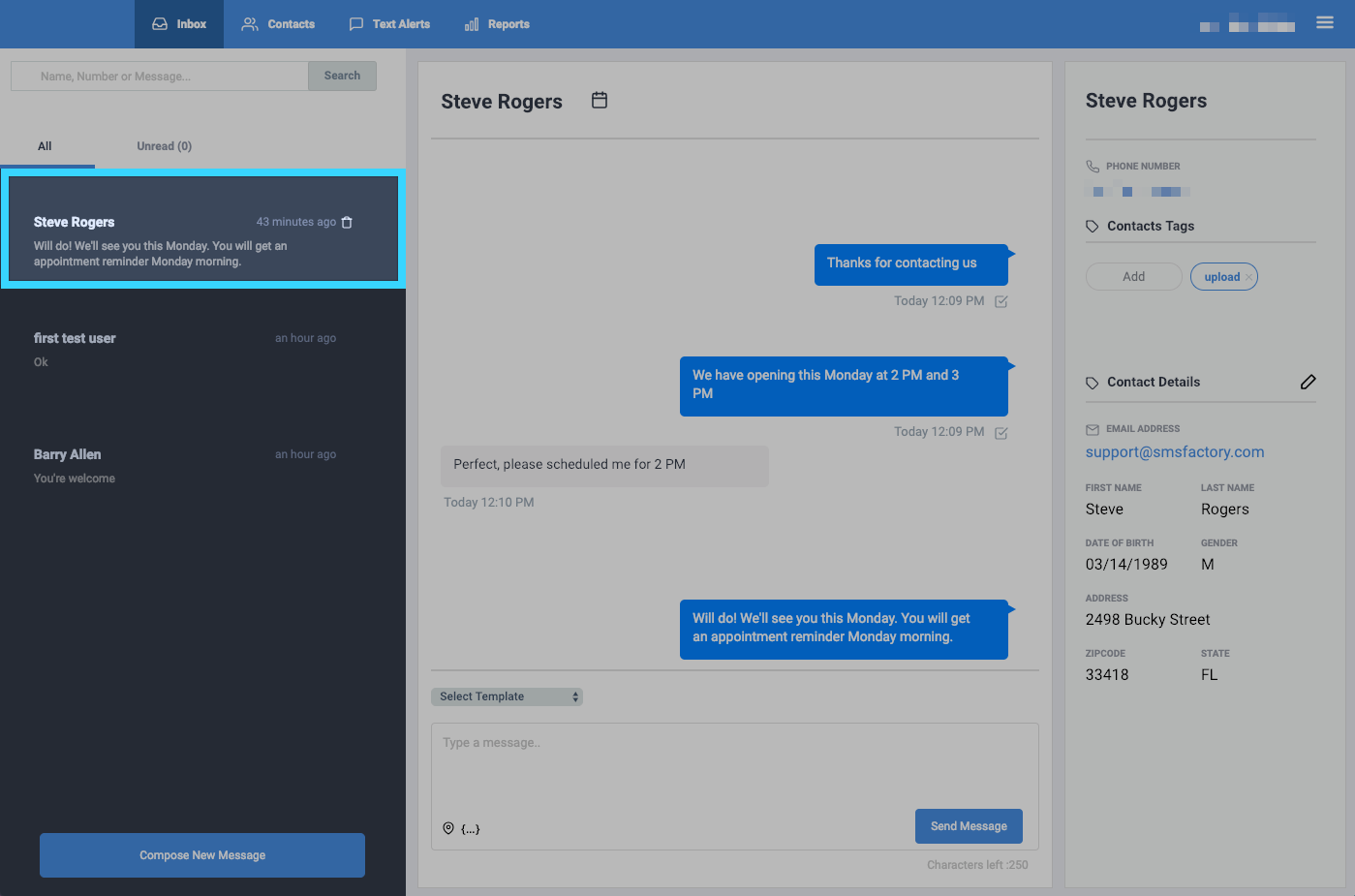
    Image_2019-01-11_at_12.54.19_PM.png

  3. In the conversation section with the user, click on the calendar icon (appointment icon) next to the user's name at the top. This will bring up the reminder window.
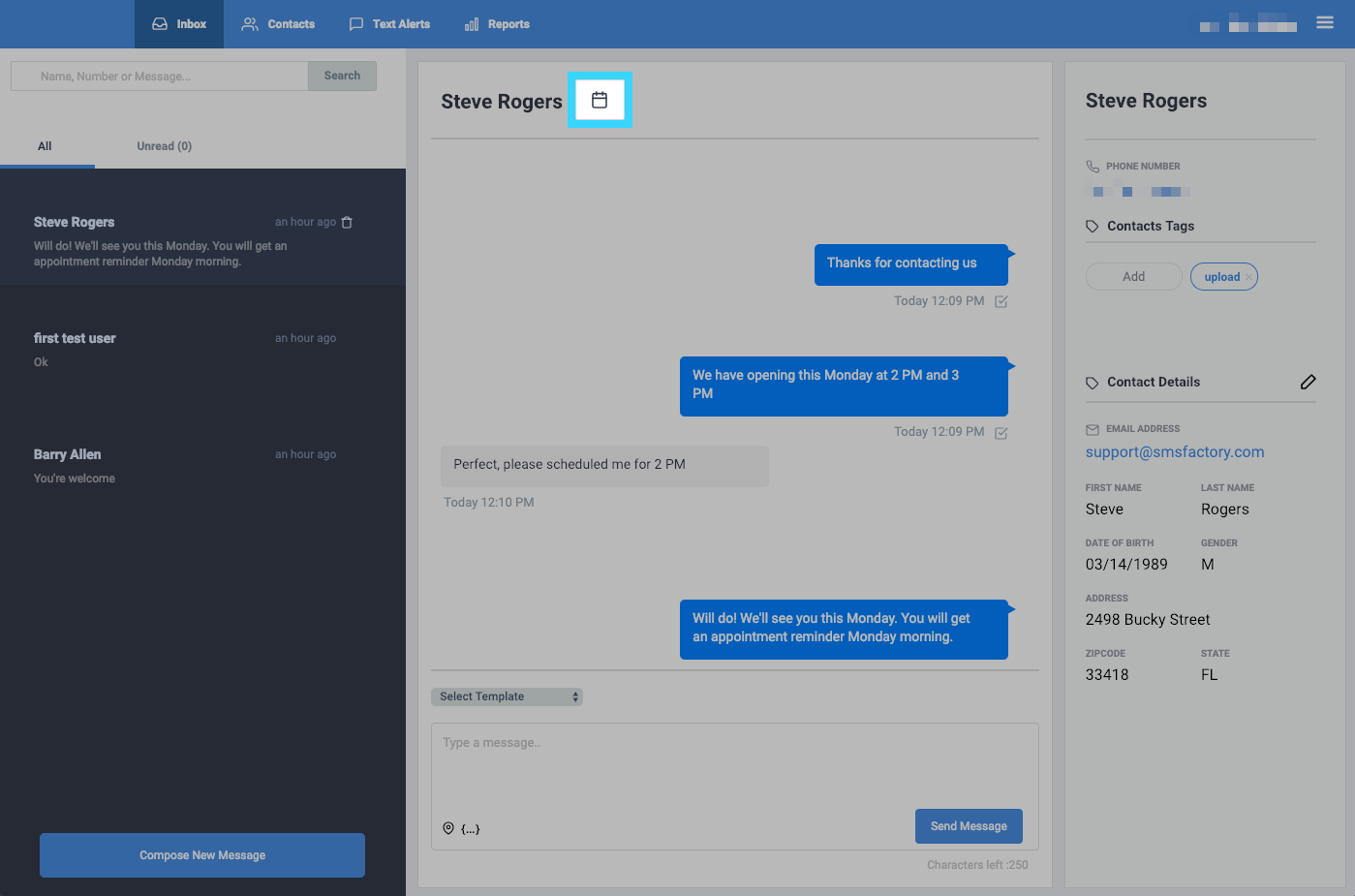
    Image_2019-01-11_at_12.56.53_PM.png

  4. In the reminder window, you will be presented with the following options:

    - Day: Choose the date of the reminder.

    - Hour: Choose the hour of the reminder.

    - Minute: Choose the minute(s) of the reminder. This is associated with the hour selected.

    - Enter your message: Compose the message you'd like to include with your reminder. 
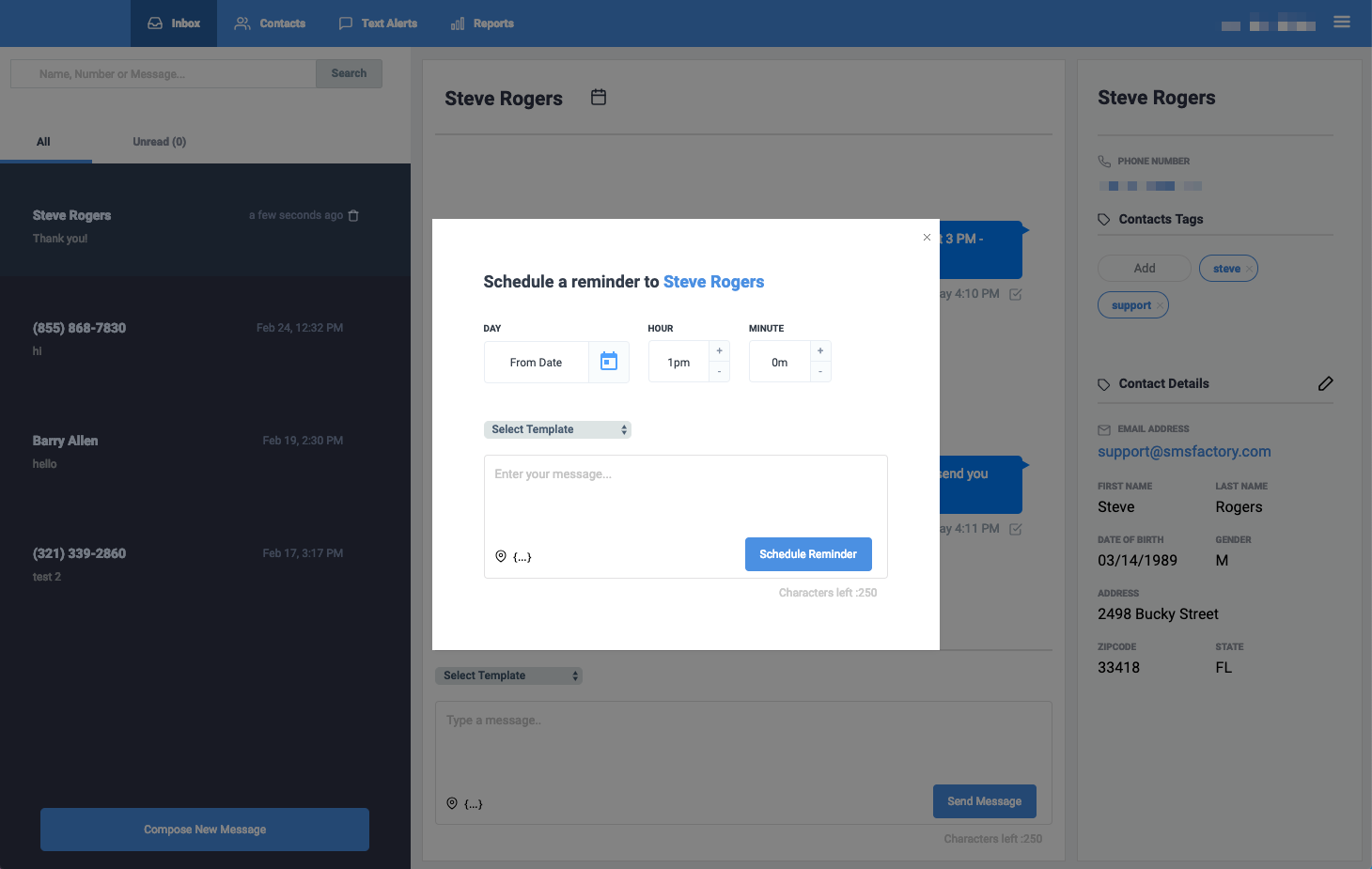
    Image_2019-02-25_at_4.12.22_PM.png

  5. Once you're done, click on the "Schedule Reminder" button.


Scheduling reminders from the Contacts tab

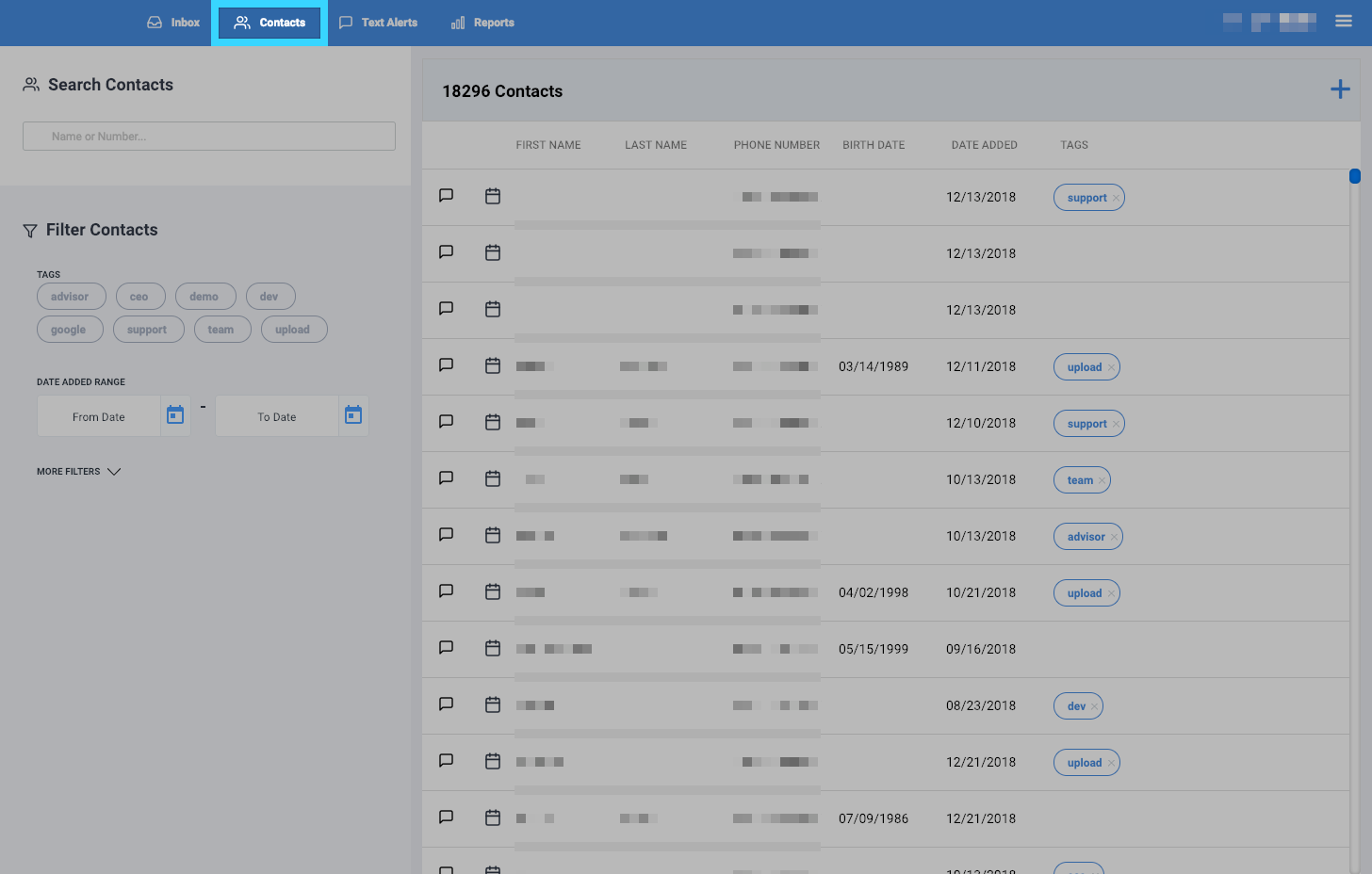
  1. Go to the Contacts tab

    Image_2019-01-11_at_2.49.11_PM.png

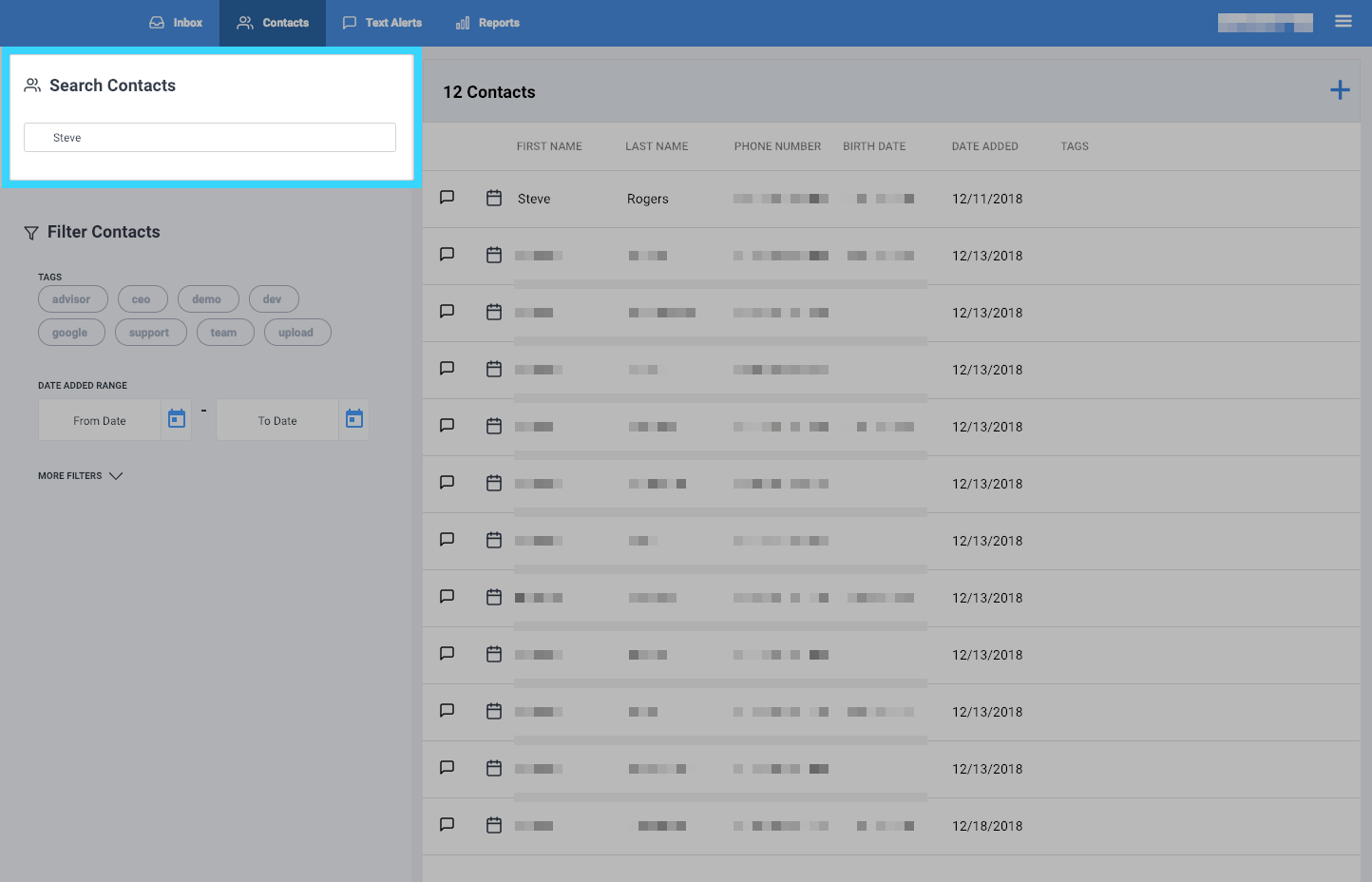
  2. Search for your desired user

    Image_2019-01-11_at_3.29.06_PM.png

  3. Click on the calendar icon (appointment icon) next to the user's name. This will bring up the reminder window.
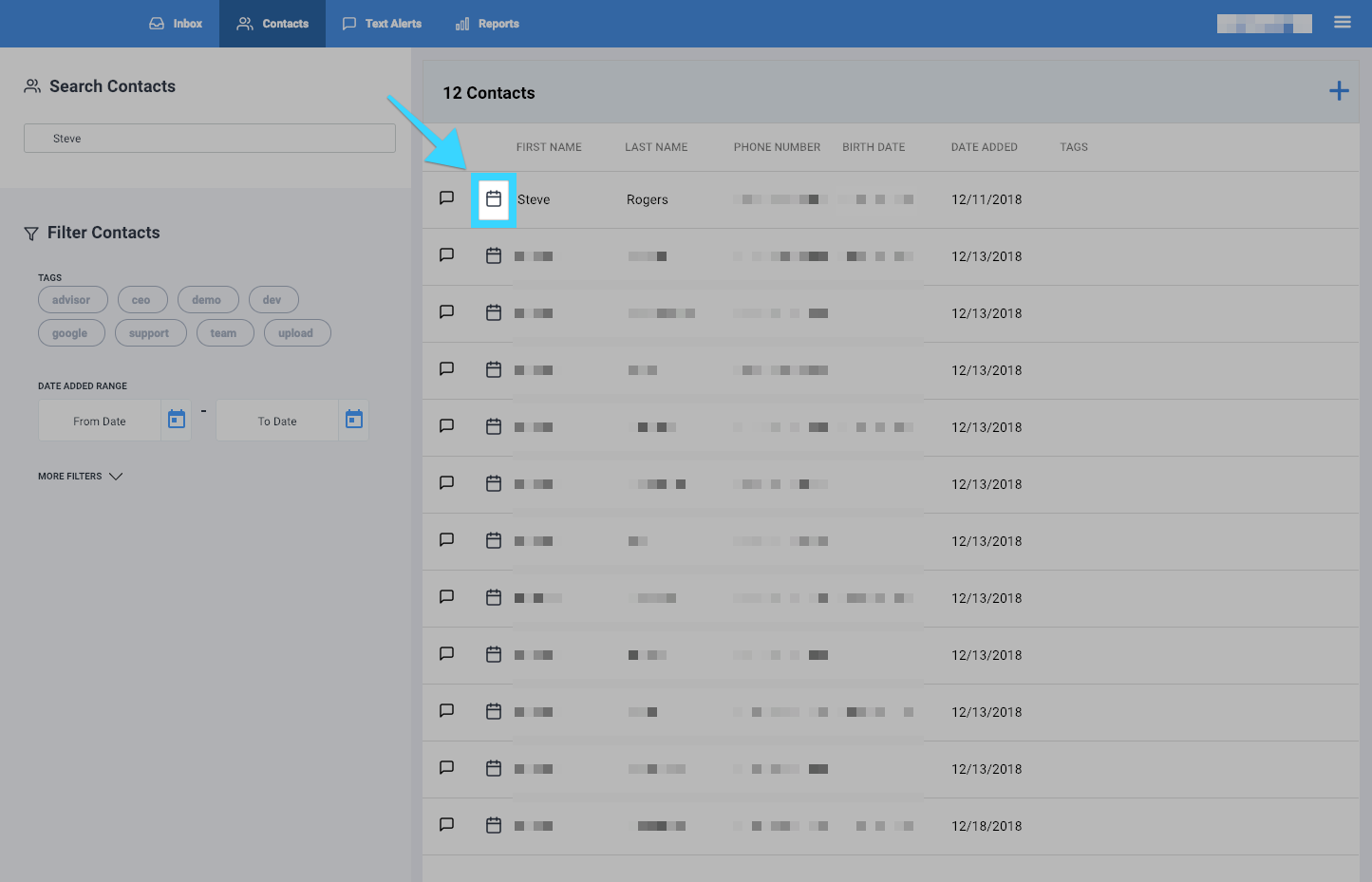
    Image_2019-01-11_at_3.31.24_PM.png

  4. In the reminder window, you will be presented with the following options:

    - Day: Choose the date of the reminder.

    - Hour: Choose the hour of the reminder.

    - Minute: Choose the minute(s) of the reminder. This is associated with the hour selected.

    - Enter your message: Compose the message you'd like to include with your reminder.
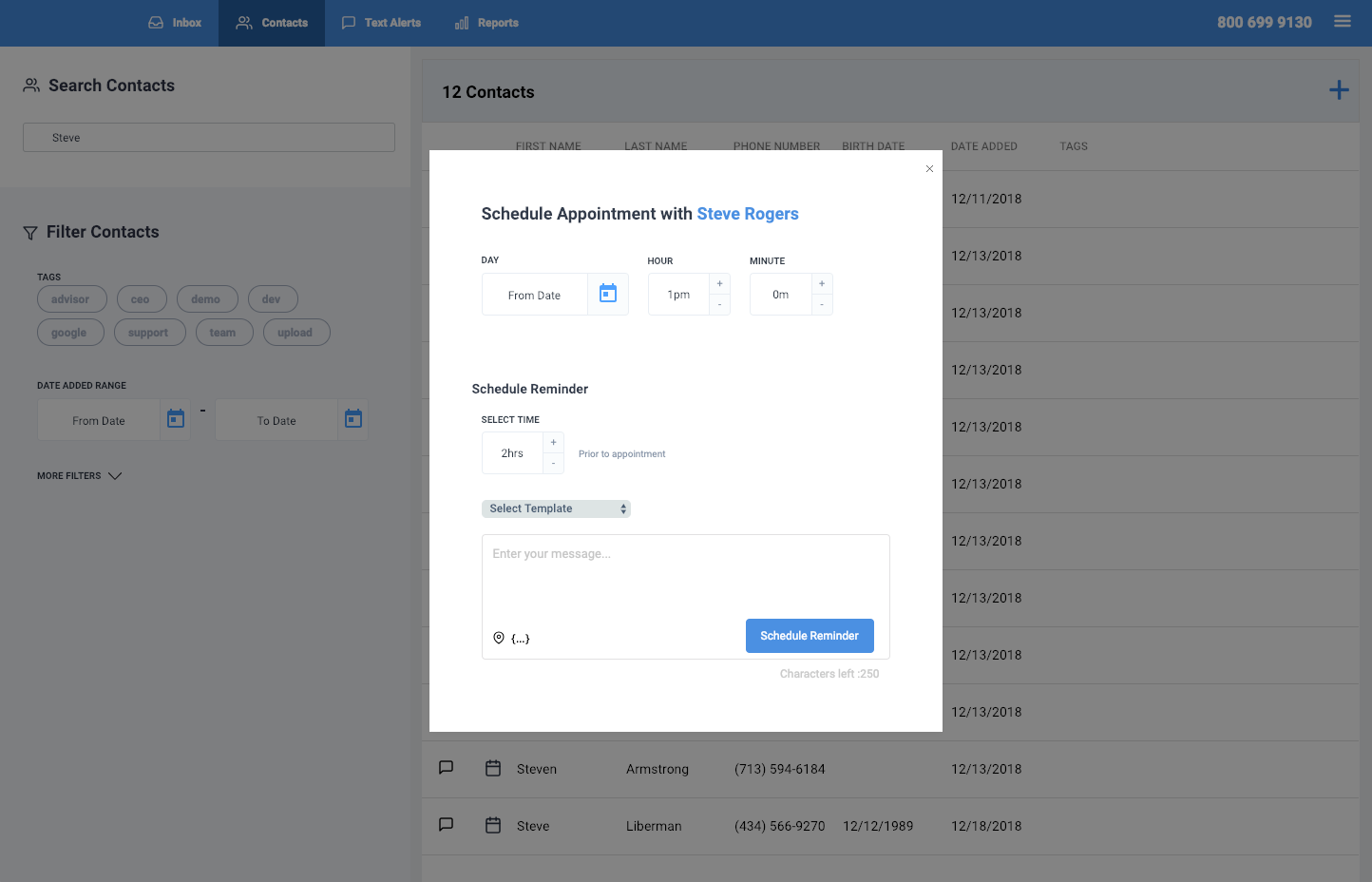
    Image_2019-01-11_at_3.41.16_PM.png

  5. Once you're done, click on the "Schedule Reminder" button.
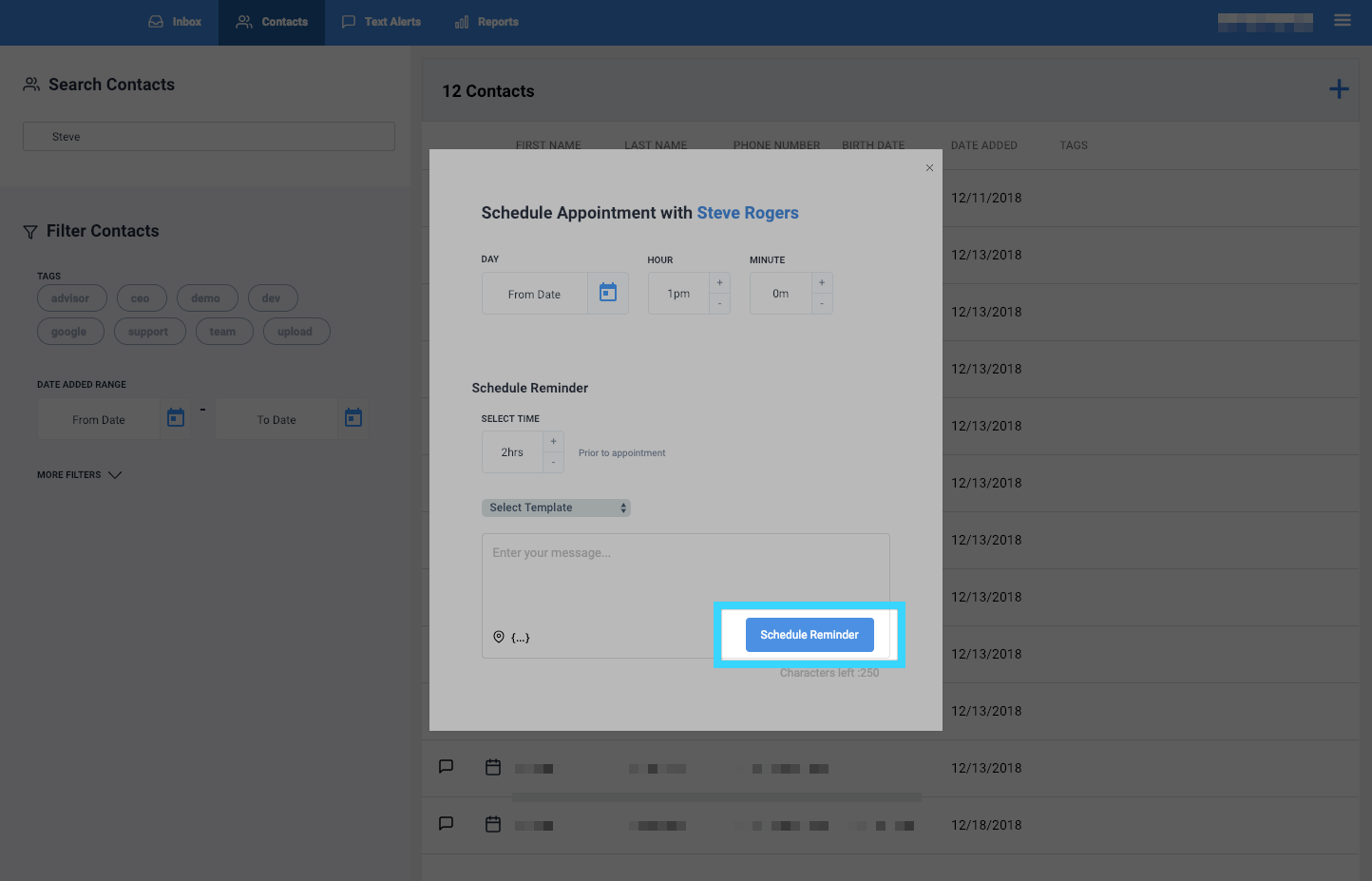
    Image_2019-01-11_at_3.42.41_PM.png


Viewing and deleting scheduled reminders

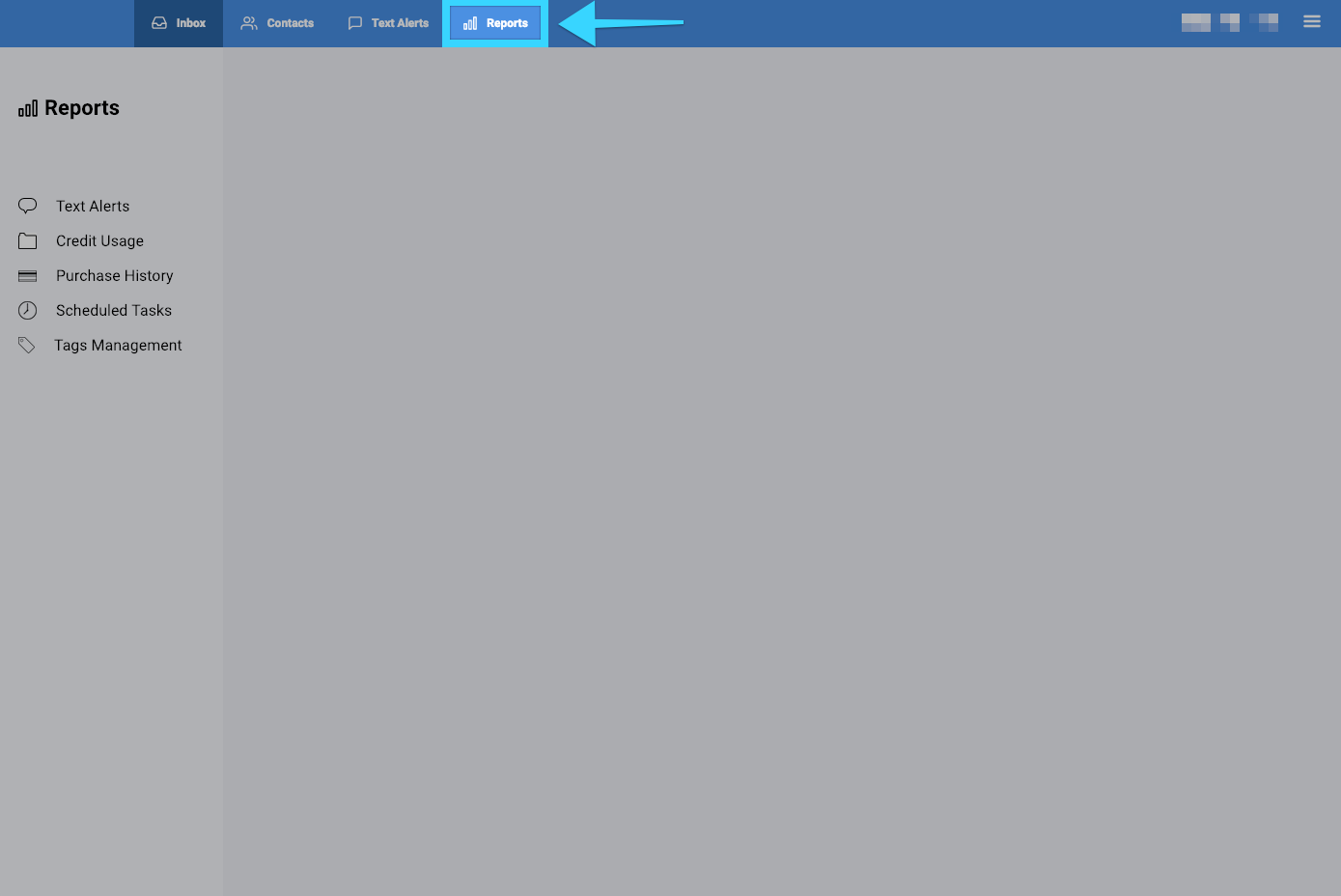
  1. Go to the Reports tab

    Image_2019-01-11_at_4.46.19_PM.png

  2. Click on "Scheduled Tasks" on the left side
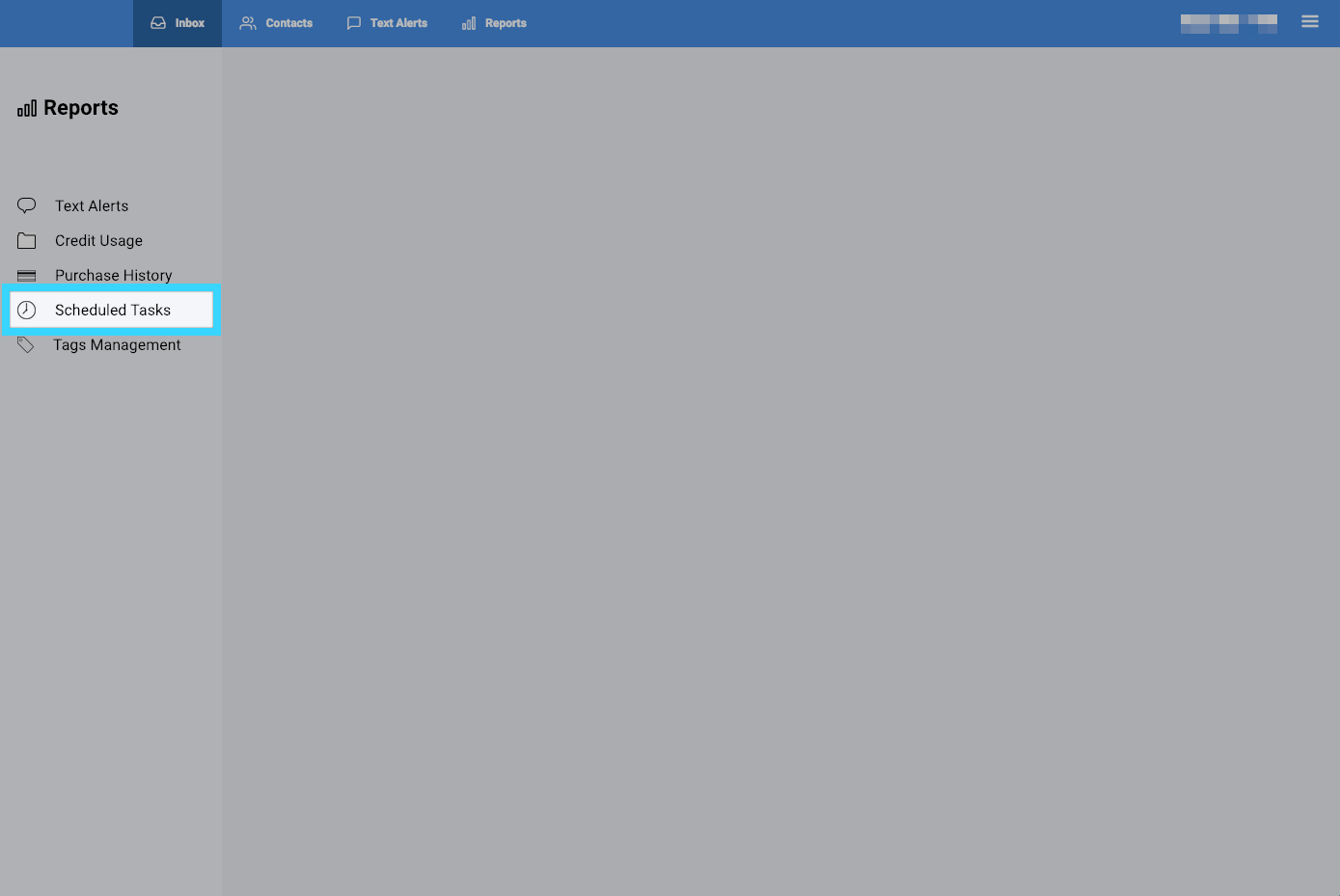
    Image_2019-01-11_at_4.50.45_PM.png

  3. You will be presented with the scheduled tasks including the reminders scheduled to go out
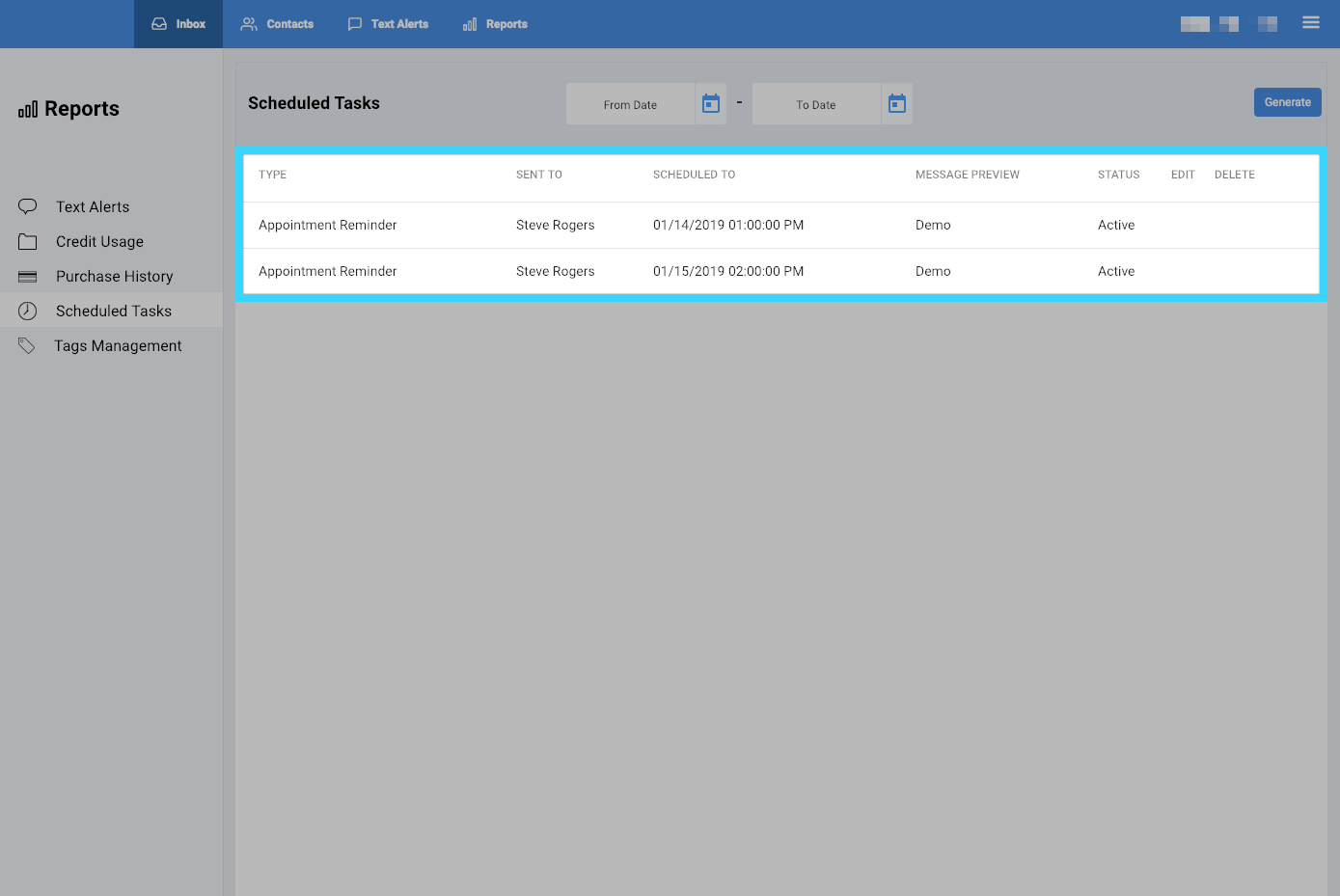
    Image_2019-01-11_at_4.55.06_PM.png

  4. If you hover over the scheduled task, you will be able to edit the reminder or delete it 
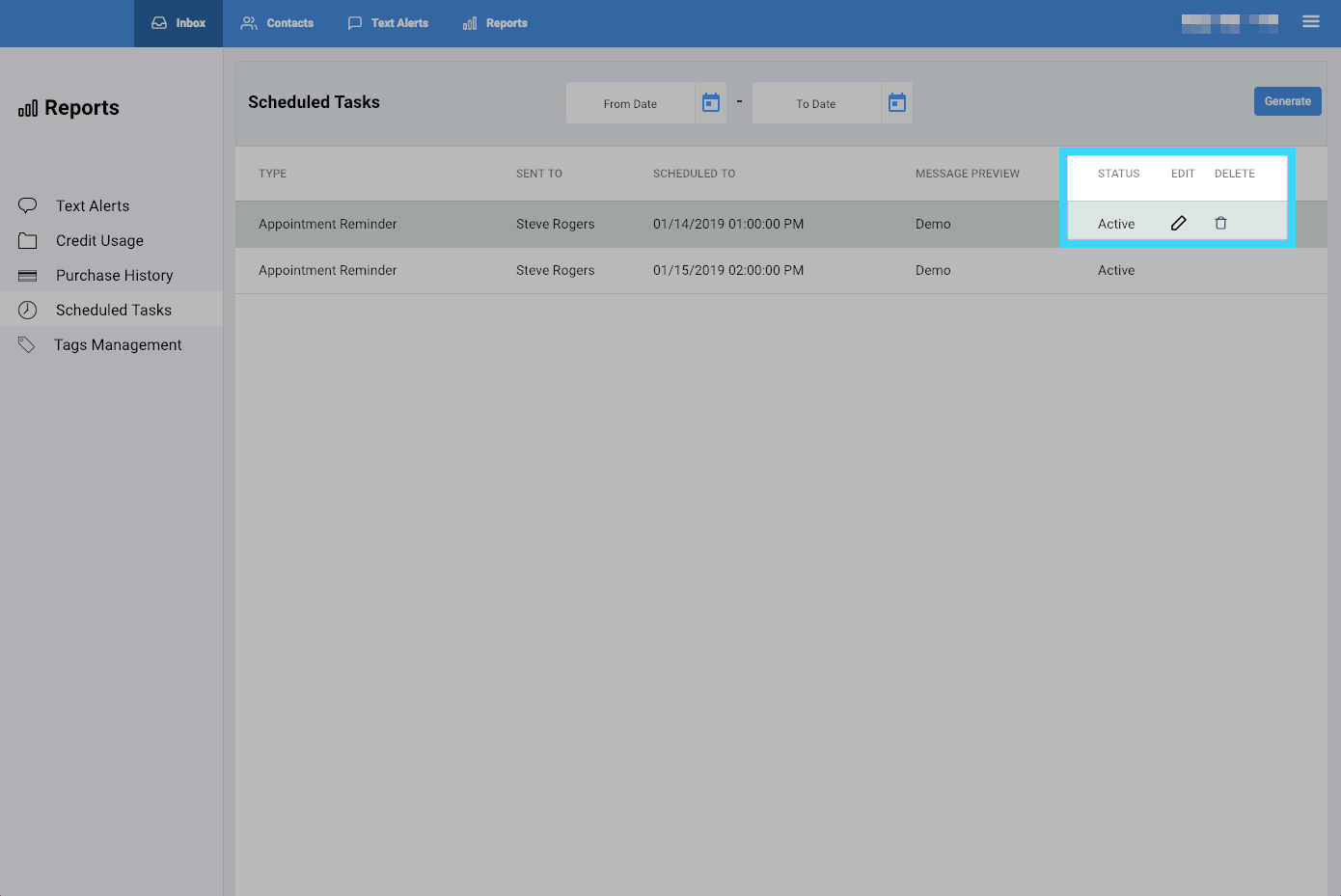
    Screen_Shot_2019-01-11_at_4.56.43_PM.png
    • Related Articles

    • Sending Text Alerts - BlueCloudUSA Business Texting Desktop

      You can send text alerts to notify all your contacts or specific contacts as a mass text blast. Note: A credit will be deducted from your balance for each text alert sent. Go to the Contacts tab Select the contacts you'd like to send a text alert. ...
    • Composing a New Message - BlueCloudUSA Business Texting Desktop

      Compose a new message to communicate with a user's mobile number. Composing a new message from the Inbox tab: Go to the Inbox tab. At the bottom left corner, click the "Compose New Message" button. A pop-up will appear. Enter the user's phone number ...
    • Texting Filters - BlueCloudUSA Business Texting Desktop

      You can use filters to find specific contacts as well as to send messages to specific contacts. Using filters in the Contacts tab Use filters in the Contacts tab to find specific contacts. Go to the Contacts tab. Under "Filter Contacts," you will ...
    • Viewing Reports - BlueCloudUSA Business Texting Desktop

      You can view reports to check different information such as text alerts sent, scheduled tasks, and tags management.   Click on the Reports tab. You will be presented with different report options on the left side of the screen. Click on your desired ...
    • Using Templates - BlueCloudUSA Business Texting Desktop

      Use templates to save recurring messages or replies that contacts will receive.    Creating a template You will find the option to create a template when typing a message, creating an appointment reminder, or sending text alerts. Simply start by ...