Editing a Contact's Information - BlueCloudUSA Business Texting Desktop
You can add a contact's information or modify their details on different parts of the desktop dashboard.
Editing a contact's information from the Inbox tab:
- Go to the Inbox tab.
- On the left-hand side of the screen, select a conversation with the contacts listed.
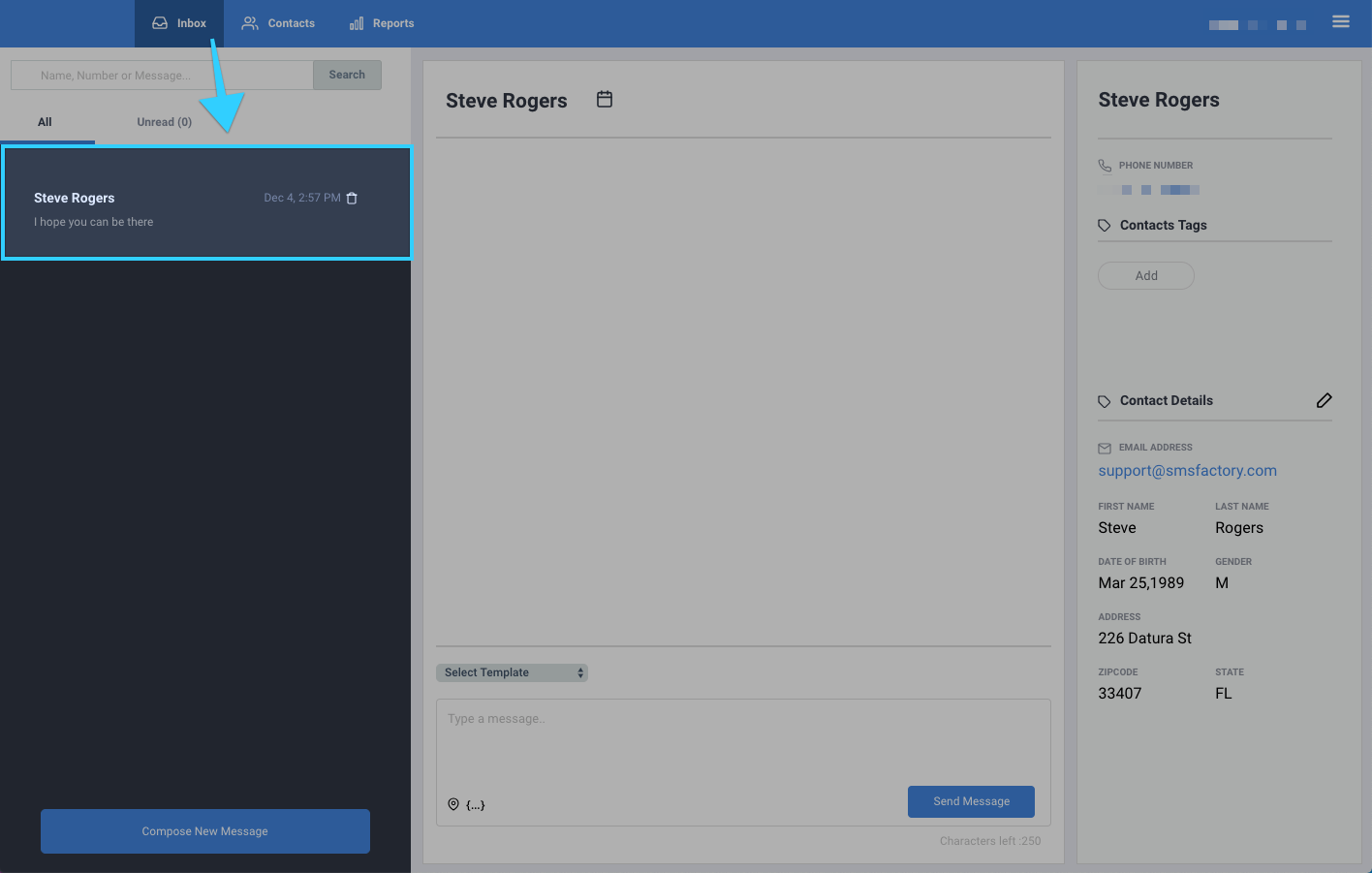
- You will now see the conversation with that contact along with their details on the right-hand side of the screen.
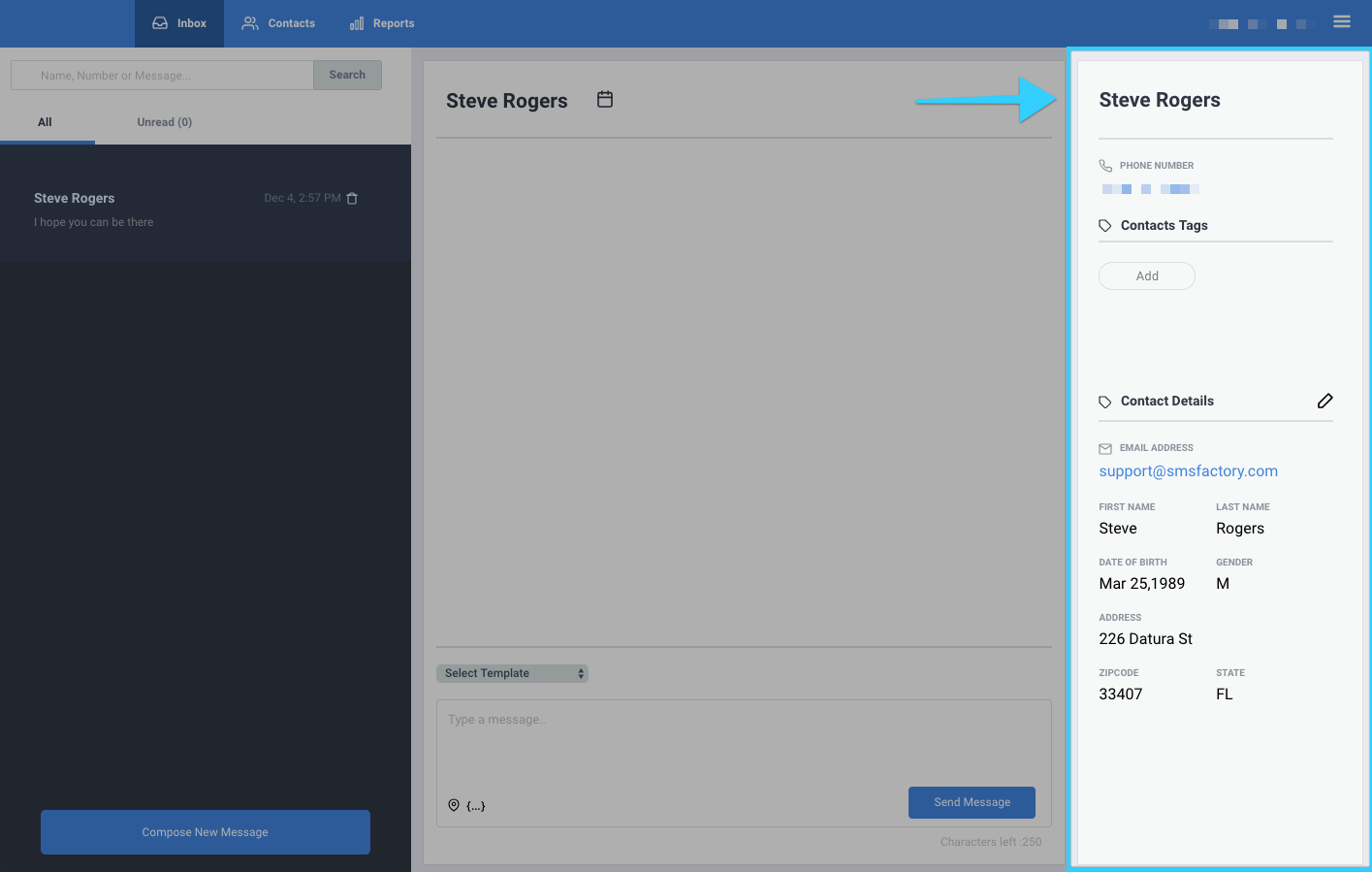
- In the "Contact Details" section, click on the pencil icon (
 ) to edit the contact's information.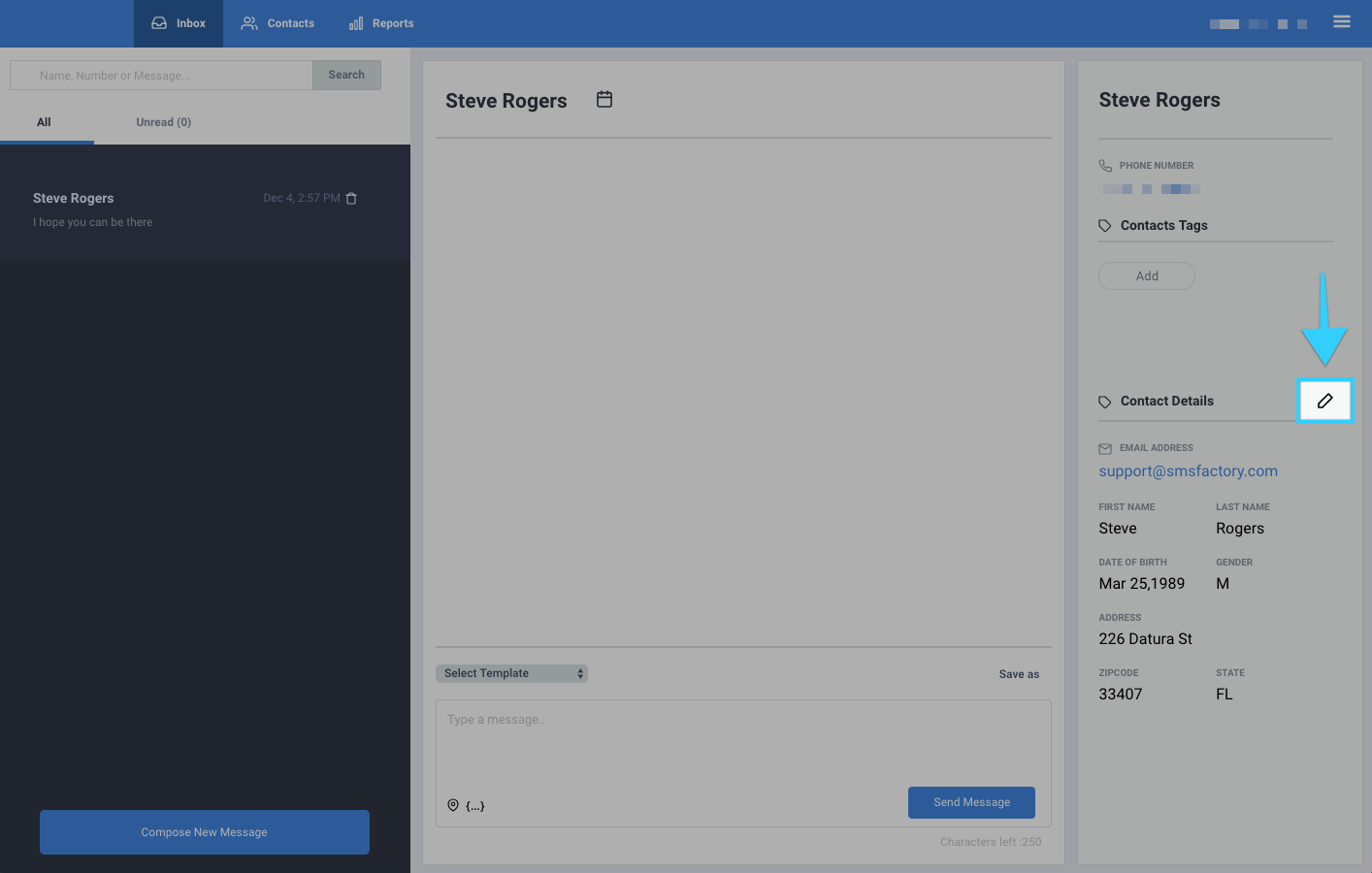
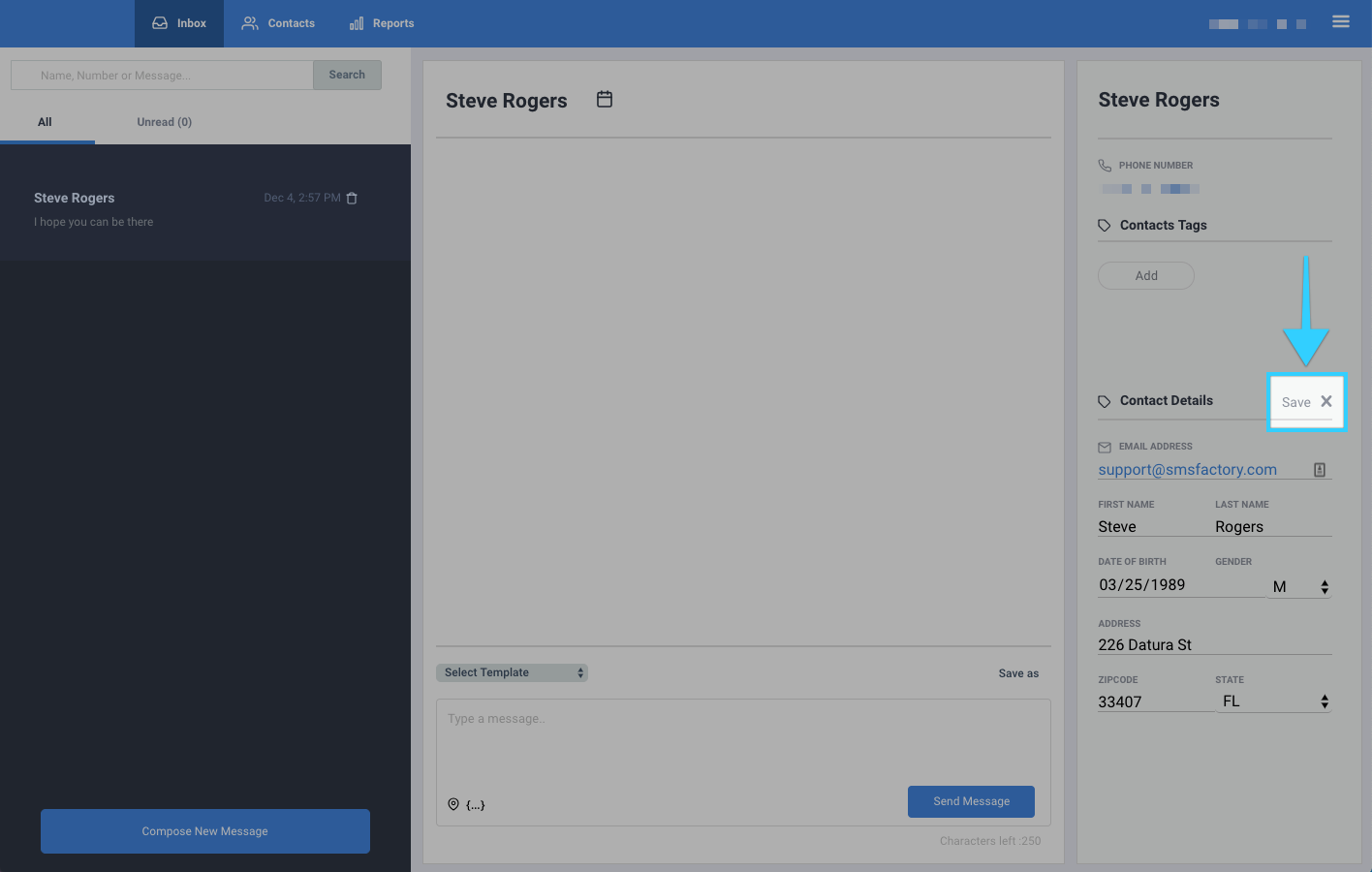
- Change the desired information.
- When done, click "Save."
Editing a contact's information from the Contacts tab:
- Go to the Contacts tab.
- Under "Search Contacts," search for the contact you're looking for by name or number.

- Once you find the contact you're looking for, click on their first name, last name, phone number, birth date or date added.

- The contact's information will be shown on the right-hand side of the screen.

- In the "Contact Details" section, click on the pencil icon () to edit the contact's information.

- Change the desired information.
- When done, click "Save."
