How to Mark Multiple or All Messages as Read | BlueCloud SMS Guide

Marking multiple or all messages as read

Mark multiple or all messages as read depending on the number of messages you're receiving.


  1. From the desktop dashboard, click on the "Unread" tab on the left side of the screen.
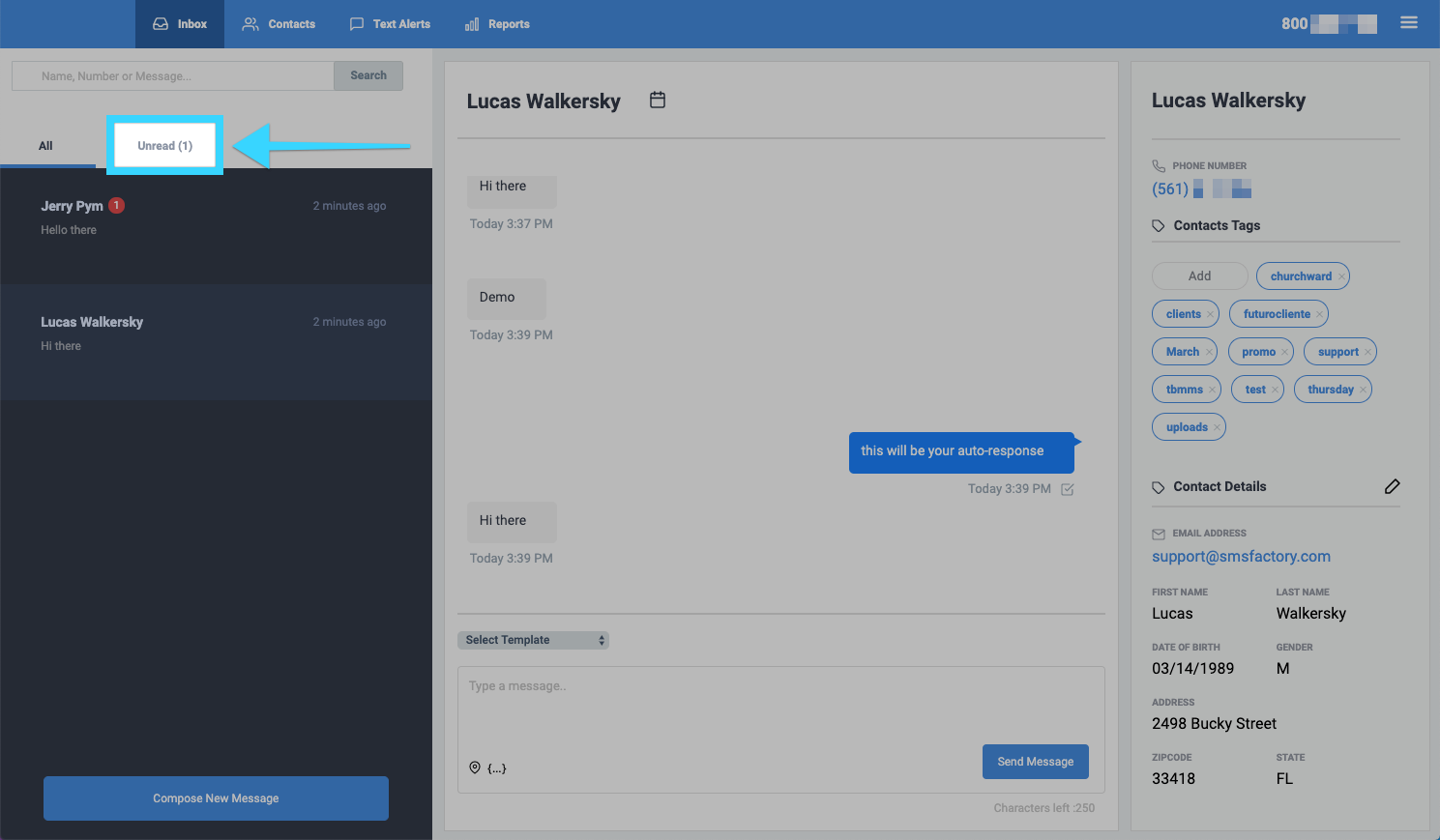
    Image_2020-03-09_at_3.42.00_PM.png


  2. You will then see all of them unread messages that you have in the inbox. Click on one of the messages, select multiple messages, or select the top box select all messages.
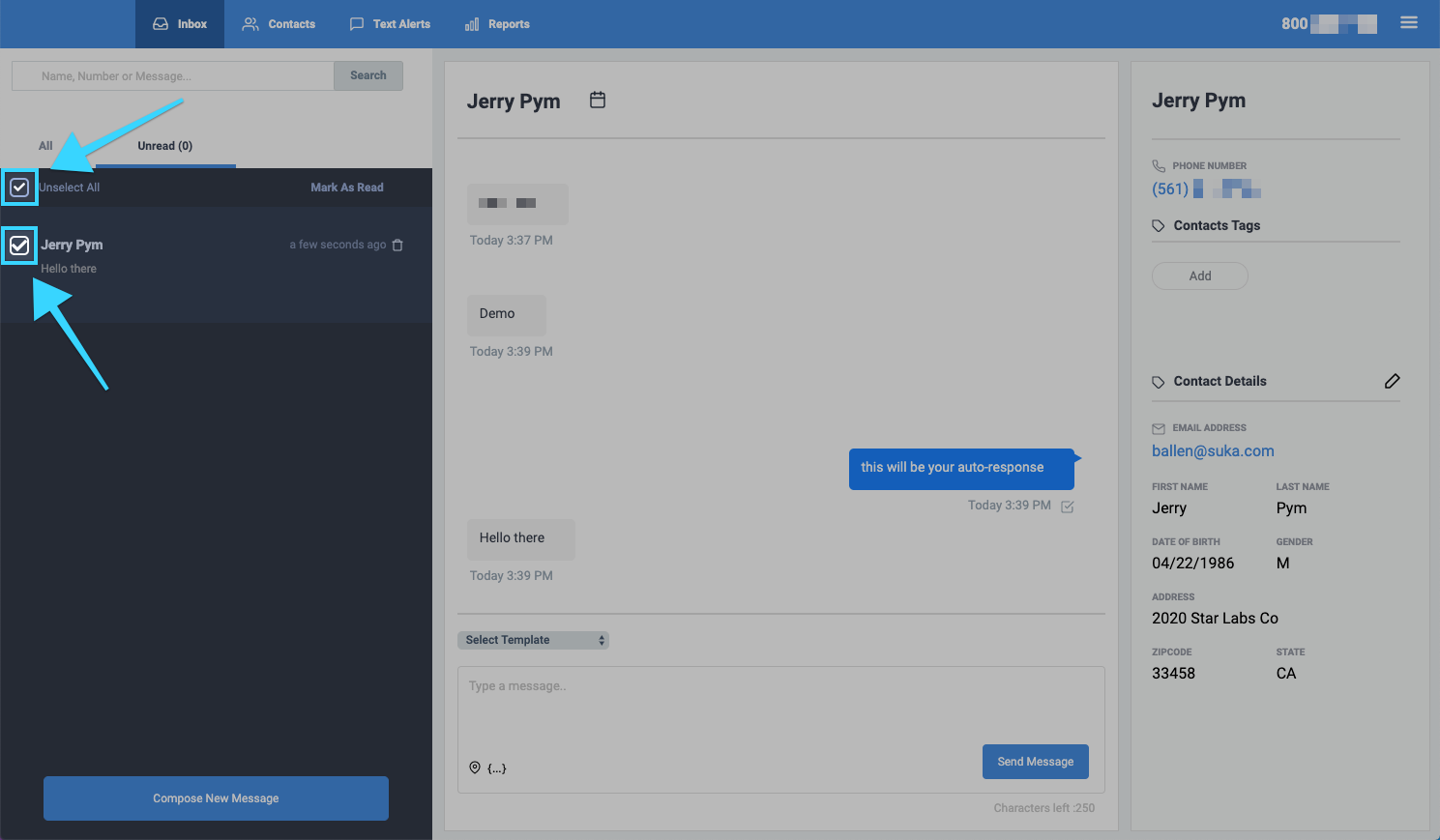
    Image_2020-03-09_at_3.54.39_PM.png


  3. You will then see the option to "Mark As Read" - if you click it, it will clear all of the messages you've selected.
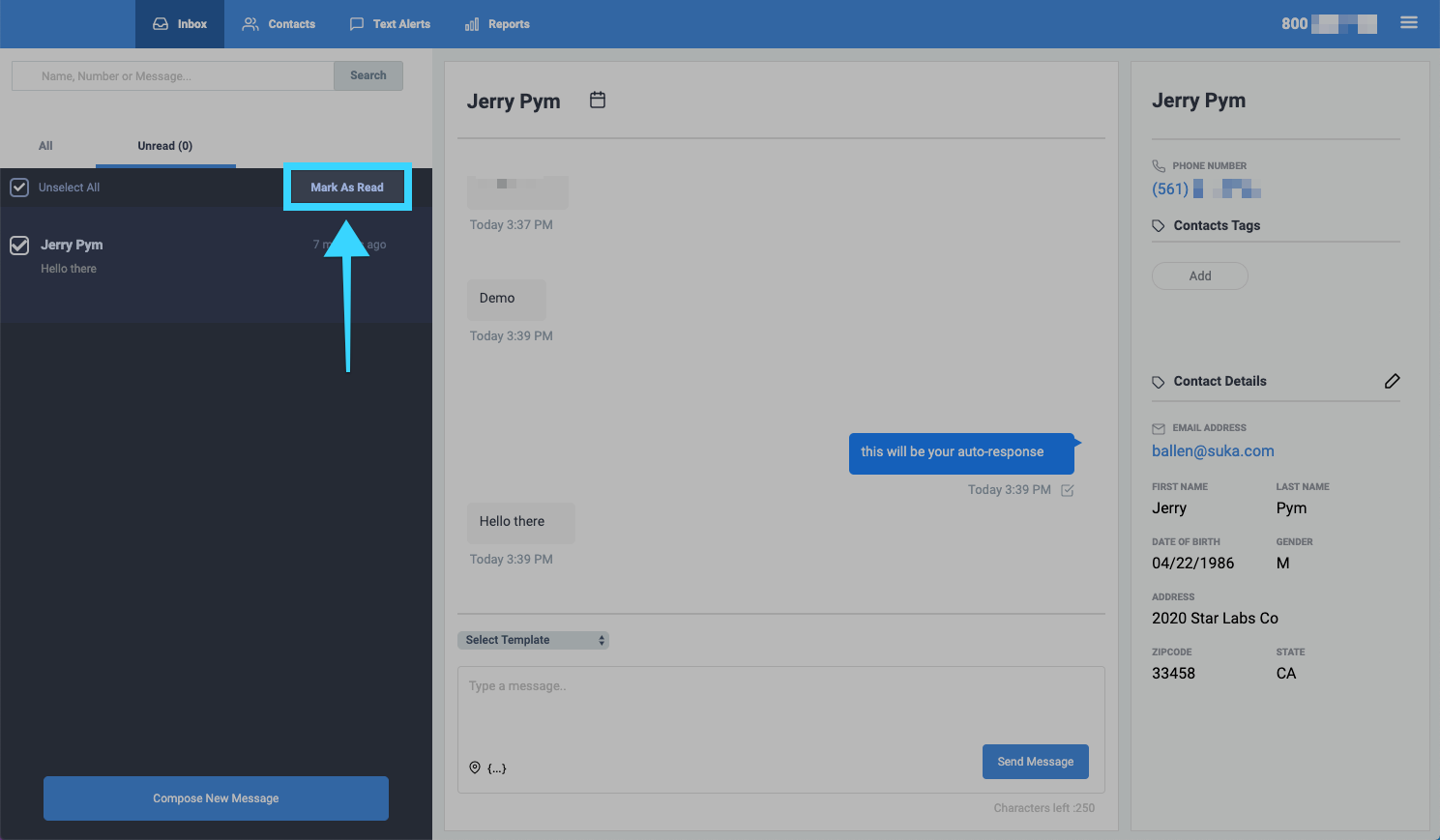
    Image_2020-03-09_at_3.47.24_PM.png

    Optional: You can also do this from the "All" tab and you will see the following options:

    - Mark As Read - Clicking this will mark all messages selected as read
    - Delete - Clicking this will delete all messages selected
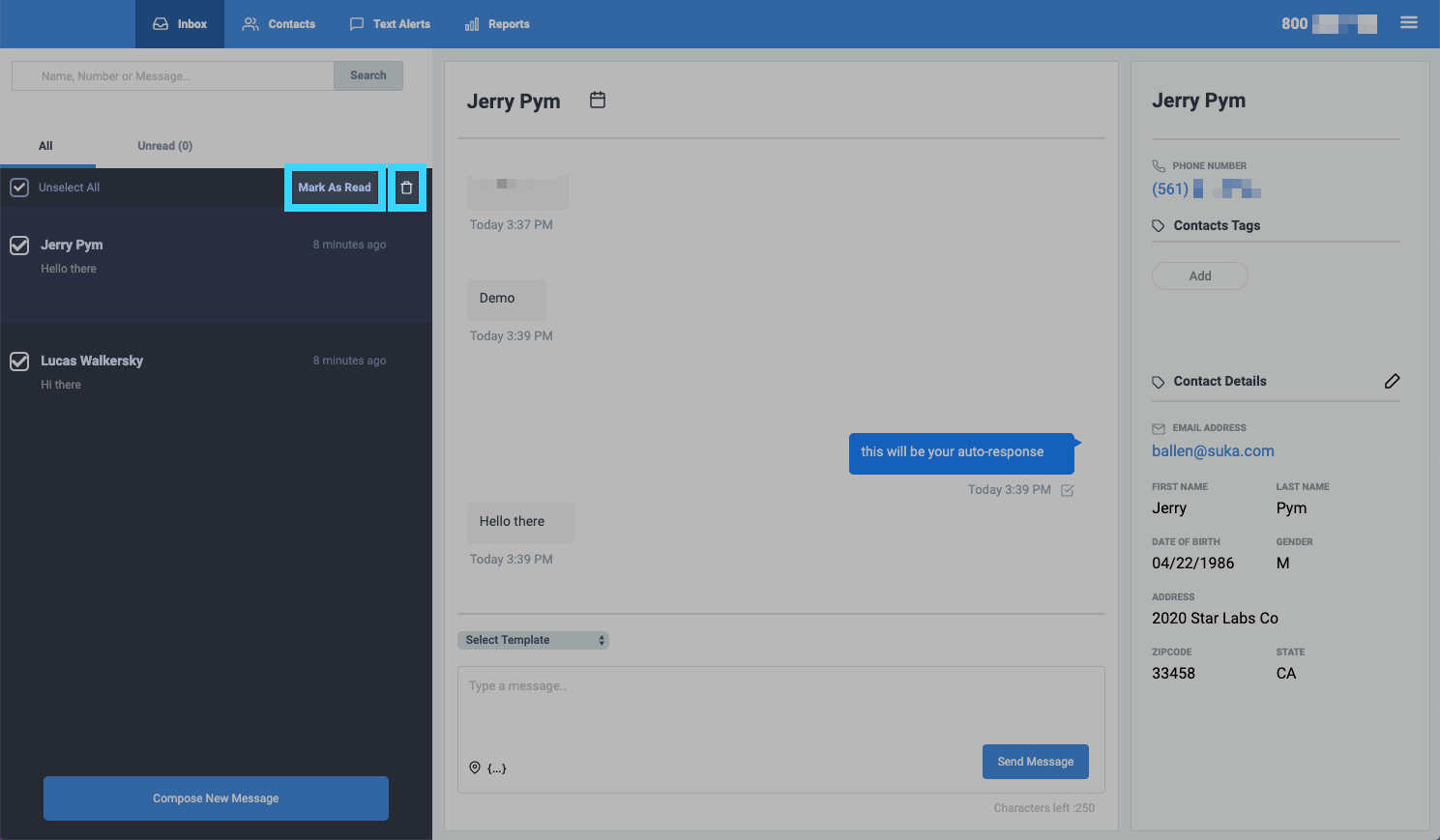
    Image_2020-03-09_at_3.48.11_PM.png


  4. Depending on what you selected, there will be deleted or marked as read. In the example below, we marked all messages as read and now our "Unread" tab was cleared.
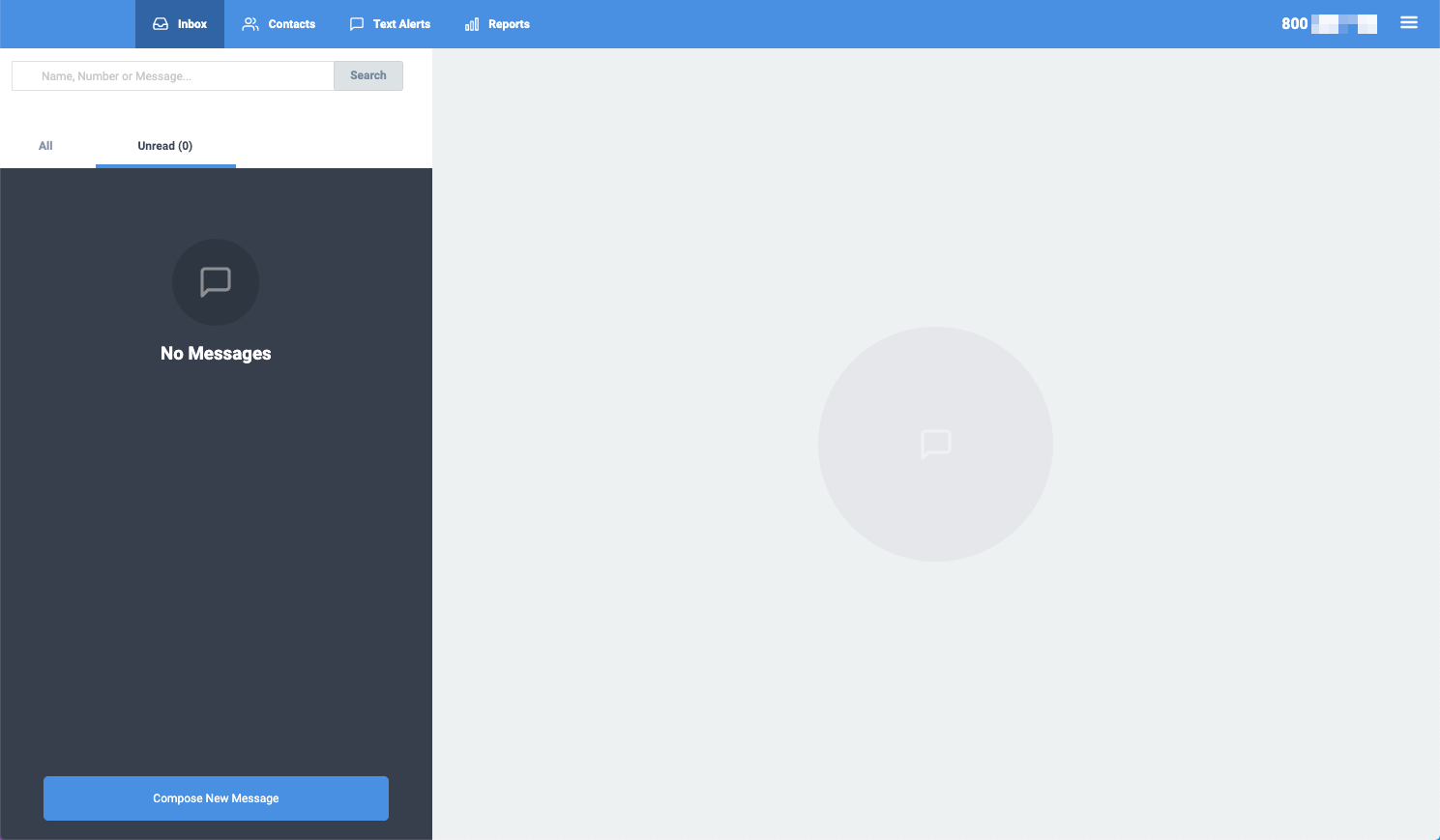
    Image_2020-03-09_at_4.04.26_PM.png
    • Related Articles

    • How to Delete a Fax

      Deleting a fax from your history is quick and easy. First, navigate to the History page in the Fax menu: To delete one fax from your history, select the 3 dots next to the fax, then click Delete: To delete multiple fax at once, first select all the ...
    • Composing a New Message - BlueCloudUSA Business Texting Desktop

      Compose a new message to communicate with a user's mobile number. Composing a new message from the Inbox tab: Go to the Inbox tab. At the bottom left corner, click the "Compose New Message" button. A pop-up will appear. Enter the user's phone number ...
    • Deleting a Conversation - BlueCloudUSA Business Texting Desktop

      You can delete a conversation to remove it from the system.   Go to the Inbox tab. In the search bar, type the name, number, or message related to the contact you're looking and click "Search." You will be presented with any message based on the ...
    • BlueCloud Customer Support Survey

      We hope that we've helped you to the best of your satisfaction. Please take a moment to provide us with some feedback regarding your support experience by completing this brief survey:  How would you rate our customer service? We promise, it will ...
    • Using Templates - BlueCloudUSA Business Texting Desktop

      Use templates to save recurring messages or replies that contacts will receive.    Creating a template You will find the option to create a template when typing a message, creating an appointment reminder, or sending text alerts. Simply start by ...